4

Use of Computer in Data Processing and Mapping
What can a Computer do?
Provided that you have the basic conceptual clarity, computer can be used very effectively to represent data through maps and diagrams. It makes your job extremely fast. The following advantages of a computer make it distinct from the manual methods:
There are many other advantages that a computer offers, that you will observe yourselves while carrying out your practical work using a computer.
Hardware Configuration and Software Requirements
A computer as an aid to data processing and mapping comprises hardware and software. The hardware configurations comprise storage, display, and input and output sub-systems, whereas software are the programs that are made of electronic codes. The computer-aided data processing and mapping, hence, requires both hardware components and related application software.
Hardware
The hardware components of a computer include :
A Central Processing Unit and Storage System
The core of modern computers consists of a central processing unit (CPU), which facilitates the execution of program instructions for processing data and controlling peripheral equipment. All data together with the operating system and the application programs occupy space in disk storage unit, which functions as working memory.
The total storage capacity depends upon the types of activity for which the computer is to be used. The hardware storage capacity for data processing and mapping should be in the range of 1 GB to 4 GB or more and the Random Access Memory (RAM) 32 MB or more. Besides the disk storage, the secondary storage, such as floppy disks, CD, pen drives and magnetic tapes are also used to store permanently large quantities of data that is not actively being processed.
The operating system is a basic program, which administers the internal data processing in a computer. The operating systems like MS-DOS, Windows, and UNIX are in general use, with the Windows being the most preferred one.
A Graphic Display System or Monitor
A graphic display system or monitor serves as the user’s prime visual communication medium in all computers. A high resolution display system with a greater range of possible display colours and Look-up Tables (LUT) for rapid alteration of colour patterns is generally preferred in graphic and mapping applications.
Input Devices
The instruction and the statistical data are entered into the computer using the keyboard functions. The keyboard is an important input device that resembles a typewriter. It has various keys for different purposes. While working on a Personal Computer (PC) you will notice a flash point on the screen. This is known as cursor. When you press a key on the keyboard, a character is displayed at the point where the cursor is flashing and the cursor moves one position forward. Besides, scanners and digitisers of different size and capabilities are also used for spatial data entry.
Output Devices
The output devices include a variety of printers, such as ink-jet, laser and colour laser printers; and the plotters that are available in different sizes ranging from A3 to A0 size.
Computer Software
Computer software is a written program that is stored in memory. It performs specific functions as per the instructions given by the user. A data processing and mapping software requires the following modules :
- Data Entry and Editing Modules
- Coordinate Transformation and Manipulation Modules
- Data Display and Output Modules
The Data Entry and Editing Modules
These inbuilt modules in the data processing and mapping software facilitate the data entry system interface, database creation, error removal, scale and projection manipulations, their organisation and maintenance of the data. Any of these and other related data entry, editing and management capabilities might be performed using displayed menus and icons on the screen. The present day commercial packages, such as MS Excel/Spread sheet, Lotus 1 – 2 – 3, and d – base provide capabilities for data processing and generation of graphs. On the other hand, Arc View/Arc GIS, Geomedia, possess modules for mapping and analysis.
Coordinate Transformation and Manipulation Modules
The present day softwares provide a wide range of capabilities used to create layers of spatial data, coordinate transformation, editing and linking the spatial data sets with the related non-spatial attributes of data.
Data Display and Output Modules
The data display and output operations vary over a range of functions and are very much dependent on the skills developed in the field of computer graphics. Some of the common capabilities that the present day softwares provide are:
- Zooming/Windowing to display of selected areas and scale change operation
- Colour assignment/change operation
- Three dimensional and perspective display
- Selective display of various themes
- Polygon shading, line styling and point markers display
- Output device interface commands for interfacing with plotter devices/ printers
- Graphic User Interface (GUI) based menu organisation for an easy interface
Computer Software for Your Use
In the preceding paragraphs, a number of data processing softwares have been referred. However, it would be difficult to discuss the capabilities and functions of each one of these softwares under the constraints of time and space. We will, therefore, describe the procedure that is followed in data processing and the preparation of graphs and diagrams using MS Excel or Spreadsheet program. The spreadsheet enables us to feed data, compute various statistics and represent the raw data or computed statistics through graphical methods.
MS Excel or Spreadsheet
As mentioned earlier, MS Excel, Lotus 1 – 2 – 3, and d – base are some of the important softwares used for data processing, and drawing graphs and diagrams. MS Excel being most widely used and commonly available software program in all parts of the country has been chosen among other software to carry out the data processing. Besides, it is also compatible with map-making software as one can easily feed data in MS Excel and attach it to the map-making software to create maps.
MS Excel is also called a spreadsheet programme. A spreadsheet is a rectangular table (or grid) to store information. The spreadsheets are located in Workbooks or Excel files.
Most of the MS Excel screen is devoted to the display of the worksheet, which consists of rows and columns. The intersection of a row and column is a rectangular area, which is called a cell. In other words, a worksheet is made up of cells. A cell can contain a numerical value, a formula (which after calculation provides numerical value) or text. Texts are generally used for labelling numbers entered in the cells. A value entry can either be a number (entered directly) or result of a formula. The value of a formula will change when the components (arguments) of the formula change.
An Excel worksheet contains 16,384 rows, numbered 1 through 1,6384 and 256 columns, represented by default through letters A through Z, AA through AZ, BA through BZ, and continuing to IA through IZ. By default, an Excel workbook consists of three worksheets. If you require, you can insert more, up to 256 worksheets. This means that in the same file/workbook you can store a large number of data and charts. Fig.4.1 shows how an excel workbook looks like.
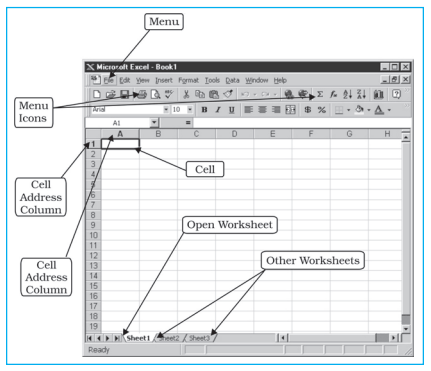
Fig. 4.1 : MS Excel Workbook
Data Entry and Storing Procedures in Excel
The data entry and storing procedures are very simple in Excel. You can enter, copy and move any data from one cell to another and save them. You may also delete incorrect or unwanted data entry or a complete file, if it is not required for further use. The elementary functions of Excel that you would require for entering data and storing them are described in Table 4.1. You can learn more on your own by exploring other menus and options by yourself. Further, you will find it easier to feed data if you use the number pad given on the right side of your keyboard. For entering data column-wise, you need to press ‘enter key’ or ‘down arrow’ after typing a number. While row-wise pressing right arrow key after typing a number can enter data.
Data Processing and Computation
Often raw data need to be processed for further use. You can easily add, subtract, multiply, and divide numbers using the keyboard signs of +, -, *, and /, respectively. These signs are known as operators and they connect elements in a formula or expression. For example, if you want to solve the expression 5 + 6 – 8 – 5, then you can easily work it out in steps below :
Step 1 : Click on any cell (with the help of mouse).
Step 2 : Type =, followed by the expression. Thus, the expression becomes = 5 + 6 – 8 – 5.
Step 3 : Press enter key, and you will get the result in the same cell that you had chosen in Step 1.
Note : The numerical operations can only be performed in excel by first typing
= sign.
Table 4.1: Important Functions for Entering and Storing Data
Note: * You cannot undo or redo any action if you have saved the file after the last action.
These operators that connect elements in a formula are solved in an order. The expressions enclosed in ‘brackets’ are solved first and are followed by the ‘exponents’, ‘division’, ‘multiplication’, ‘addition’ and ‘subtraction’. For example, expression/formula within a cell given as =A8/(A9 + A4) will be solved using Excel as under:
It will first add the values entered in cells A9 and A4, and then will divide the value of A8 by the sum.
Further, if you want to supplement your understanding on the percentage share of urban population to the total population, in that case, you have to calculate the percentage of urban population in various states of India. To do so, you will require the data on urban population and total population for each population. population.state of India. The worksheet allows you to easily calculate the percentage of urban population in each state provided you adopt the following steps :
Step 1 : Enter the name of the states in first column (i.e. column A).
Step 2 : In Column B, corresponding to each state, enter the size of urban population.
Step 3 : In Column C, corresponding to respective state enter the size of total population.
Step 4 : In Column D and row 2, type = followed by B2/C2 (that is total urban population of Andhra Pradesh divided by the total population in the same State) and *100 (multiplied by 100). Thus, the expression becomes =B2/C2*100
Step 5 : Press enter key. This will give you solution of the expression, that is, the percentage of urban population in Andhra Pradesh.
Step 6 : Now you need not to write the formula again for calculating percentage
of urban population for other states. Simply, click on the cell D2.
This will copy the formula of the first state/cell to all the downward
cells you have dragged it over.
(Note: the formula =B2/C2*100 that has been written in cell D2, and becomes B3/C3*100 in cell D3, and so on). ‘Fig. 4.2 graphically shows steps 1 to 5 as given above, while step 6 is shown in Fig.4.3.
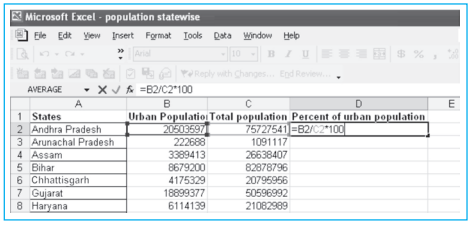
Fig. 4.2 : Cell Operation in MS Excel
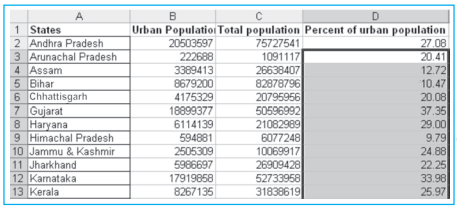
Fig. 4.3 : Copying through Dragging over in MS Excel
You have already been introduced to some basic statistical methods, such as measures of central tendency, dispersion and correlation in Chapter 2. You must have understood the concept and rationale behind these techniques. The use of worksheet functions to compute these statistics will be discussed in the subsequent paragraphs.
In MS Excel, there are numerous inbuilt statistical and mathematical functions. These functions are located in Insert menu. To use the function, click on the Insert menu, and choose f x (Function) from the dropdown list. Note that your cursor should be located in the cell where you want the formula to appear. Some examples of application of statistical functions are given below.
Central Tendencies
Central tendencies are represented by mean, median and mode. Arithmetic mean, also called average, is a commonly used method for calculating the central tendency. In MS Excel, it is denoted by its popular name average. As an example, we shall calculate mean cropping intensity in India during various decades using the average function in Excel. The following steps are to be undertaken :
Step 1 : Enter year-wise cropping intensity data in a worksheet, as shown in Fig.4.4.
Step 2 : Click on cell B12 using mouse.
Step 3 : Click on Insert Menu and choose f x (Function) from dropdown list, this will open Insert Function dialogue box.
Step 4 : Select Statistical from select a category menu on the dialogue box. This will bring forth the statistical functions available in Excel in the box below in the same dialogue box,
Step 5 : In the box Select a Function, click on Average and press OK button. This will open another dialogue box called Function Argument.
Step 6 : Either enter the cell range of data of the first decade CI_50s (which shows year-wise cropping intensity in 1950s) in the Number 1 box on Function Argument dialogue box of data, or drag cursor pressing the left button of mouse over the cell range of data.
Step 7 : Press OK button on the Function Argument dialogue box. This calculates mean cropping intensity for the decade 1950s in cell B12, where you had put your cursor in the beginning.
Step 8 : Now, calculate the mean for other decade either following Steps 1–7 given above or dragging cursor right handward in the same row selecting the small square from rectangle of cell B12 or you can copy the cell B12 and paste it on D12, F12, H12 and J12. This will give you the mean value of cropping intensity for the decades 1960s, 1970s, 1980s and 1990s, respectively.
These steps are further explained in Fig. 4.4 through Fig.4.6.
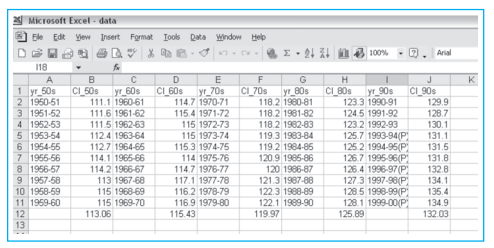
Fig. 4.4 : Calculation of Mean Using Statistical Function in MS Excel
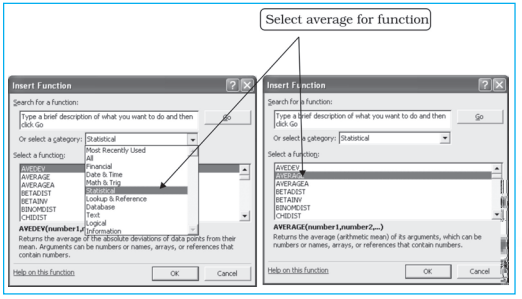
Fig. 4.5 : Selection of Statistical Function
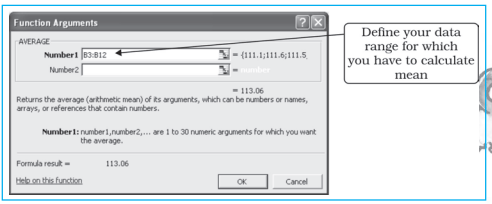
Fig. 4.6 : Defining Range in Function Arguments dialogue box
The computation of mean for the given data reveals that there has been an impressive increase in mean decadal cropping intensity over different decades in general, and 1980s onwards in particular. In fact, during 1980s the “Green Revolution” underwent a spatial spread and a tremendous increase in area under tube-well irrigation took place, which facilitated cultivation in the arid regions as well as during the dry seasons.
Using almost the same procedure used for calculating mean, as outlined above, you can calculate median, standard deviation, and correlation. Some hints for this are provided in Fig.4.7 and Fig. 4.8.
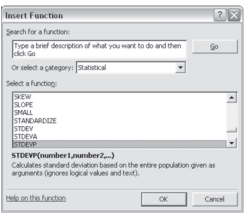
Fig. 4.7 : Function for Standard Deviation
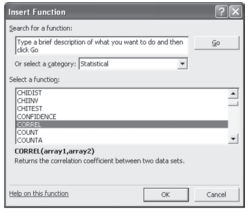
Fig. 4.8 : Function for Correlation
Construction of Graphs
You know that the data in tabular form, at times make it difficult to draw inferences about whatever is being presented. On the other hand, the representation of the data in graphical form enhances our capabilities to make meaningful comparisons between the phenomena represented, and present a simplified view of the characteristics depicted. In other words, graphs and diagrams make us to decipher the contents of data easily. For example, it would be difficult to make sense of the Cropping Intensity in India if the data for all 50 years are presented in a tabular form. However, through a line graph or bar diagram, we can easily draw meaningful conclusions about the trend in Cropping Intensity in India.
Data Types and Some Suitable Graphical Methods of their Presentation
The selection of a suitable graphical method is important for the presentation of data. In Chapter 3, you have learnt about graphs and diagrams, and the kind of data suitable for. Here, you will learn how graphs and diagrams are constructed in Excel.
Suppose, you want to represent changes in the share of workers in different industrial categories between 1981 and 2001, the most suitable graphical methods would be bar diagram as it shows changes over different years clearly. The construction of bar diagram requires the following steps :
Step 1 : Enter the data in worksheet as shown in Fig.4.9.
Step 2 : Select the cells dragging mouse (right button pressed) over the cells.
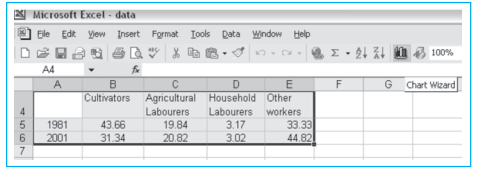
Fig. 4.9 : Entering data and selecting cells for Construction of Bar Diagram
Step 3 : Click on Chart Wizard (Fig.4.9). This will open Step 1 of 4 of Chart Wizard (Fig.4.10).
Step 4 : Double click on the simple bar diagram in the box ‘Chart Sub-type’
(Fig.4.10). This will lead you to Step 2 of 4 of Chart Wizard
(Fig.4.11), in which worksheet number and selected data range, and
a preview of bar diagram appear. As categories in data are arranged
row-wise, therefore, it is row-wise chart construction.
‘data table’. Chart titles and axes name entry are shown in Fig. 4.12, while options for ‘legend placement’ are shown in Fig. 4.13. Type the axes names as shown in Fig. 4.13 and select the ‘placement of legend’ as shown in Fig. 4.14.
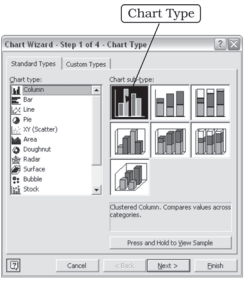
Fig. 4.10 : Step 1 to 4 of Chart Wizard
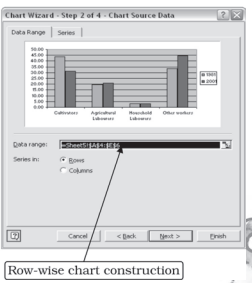
Fig. 4.11 : Step 2 of 4 of Chart Wizard
Step 5 : Click on the Next radio button, and this will lead you to Step 3 of 4
of Chart Wizard (Fig.4.12). Here you will find various options for
entering ‘title’ ‘name of axes’, options for ‘grid lines’, ‘data labels’ and
Rationalised 2023-24
66
Practical W ractical Wractical Work in Geography, Part-II
‘data table’. Chart titles and axes name entry are shown in Fig. 4.12,
while options for ‘legend placement’ are shown in Fig. 4.13. Type the
axes names as shown in Fig. 4.13 and select the ‘placement of legend’
as shown in Fig. 4.14.
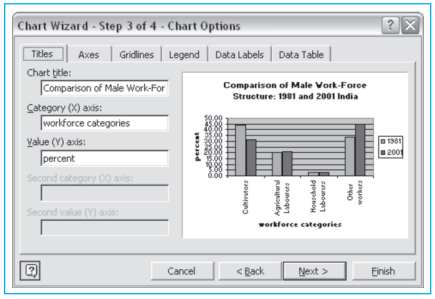
Fig. 4.12 : Entering names of Axes
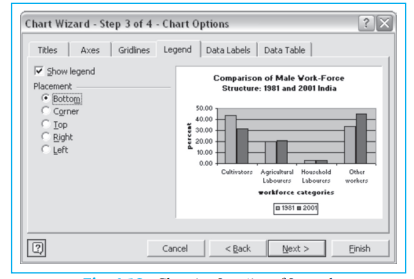
Fig. 4.13 : Choosing Location of Legend
Step 6 : When you have finished entering axes titles and legend options, etc., click on Next radio button (Fig. 4.13). This will lead you to step 4 of Chart Wizard, which will let you choose the location of the constructed bar diagram for the data (Fig. 4.14). Choose ‘As Object in’ and select the same sheet you have entered the data, i.e., Sheet 5 (optionally, you can also place your bar diagram in a new sheet choosing ‘as new sheet’).
Step 7 : Press OK radio button in Fig. 4.14. This will complete the Chart Wizard and your bar diagram as shown in Fig.4.15 will appear in Worksheet 5.
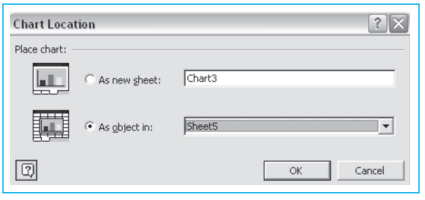
Fig. 4.14 : Choosing Location of Chart
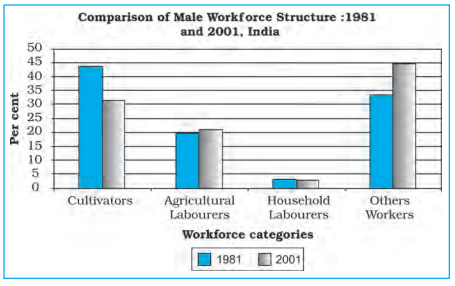
Fig. 4.15 : The Complete Bar Diagram
You can change the pattern of bars from colours to shades or vice versa by clicking on the bars. Similarly, you can also change the fonts or gridlines if required. The above diagram shows that the share of cultivators has declined significantly over the two decades and the share of other workers has appreciably risen and the shares of agricultural and household labourers have largely been the same.
Some Important Norms for Data Representation
1. A figure should have its figure number.
2. It should have a suitable title, in which time and space it relates to should also be mentioned.
3. Within title or as sub-title, the unit in which the quantities are shown should be mentioned.
4. The title, sub-title, title of axes, legend and the main presentation
should be shown with suitable font size and type so that they occupy
space in a balanced manner
Computer Assisted Mapping
The maps may also be drawn using a combination of computer hardware and the mapping software. The computer assisted mapping essentially requires the creation of a spatial database alongwith its integration with attribute or non- spatial data. It further involves the verification and structuring of the stored data. What is most important in this context is that the data must be geometrically registered to a generally accepted and properly defined coordinate system and coded so that they can be stored in the internal database structure within the computer. Hence, care must be taken while using the computer for mapping purposes.
Spatial Data
The spatial data represent a geographical space. They are characterised by the points, lines and polygons. The point data represent positional characteristics of some of the geographical features, such as schools, hospitals, wells, tube-wells, towns and villages, etc., on the map. In other words, if we want to present the occurrence of the objects on a map in dimensionless scale but with reference to location, we use points. Similarly, lines are used to depict linear features, like roads, railway lines, canals, rivers, power and communication lines, etc. Polygons are made of a number of inter-connected lines, bounding a certain area, and are used to show area features such as administrative units (countries, districts, states, blocks); land use types (cultivated area, forest lands, degraded/waste lands, pastures, etc.) and features, like ponds, lakes, etc.
Non-spatial Data
The data describing the information about spatial data are called non-spatial or attribute data. For example, if you have a map showing positional location of your school, you can attach the information, such as the name of the school, subject stream it offers, number of students in each class, schedule of admissions, teaching and examinations, available facilities, like library, labs, equipment, etc. In other words, you will be defining the attributes of the spatial data. Thus, non-spatial data are also known as attribute-data.
Sources of Geographical Data
The geographical data are available in analogue (map and aerial photographs) or digital form (scanned images).
The procedure of creating spatial data in the computer has been discussed in Chapter 6.
Mapping Software and their Functions
There are a number of commercially available mapping softwares, such as ArcGIS, ArcView, Geomedia, GRAM, Idrisi, Geometica, etc. There are also a few freely downloadable softwares that can be downloaded with the help of Internet. However, it would be difficult to discuss the capabilities of each one of these softwares under the constraints of time and space. We will, therefore, describe the procedure in general used in choropleth mapping using a mapping software.
A mapping software provides functions for spatial and attribute data input through onscreen digitisation of scanned maps, corrections of errors, transformation of scale and projection, data integration, map design, presentation and analysis.
A digitised map consists of three files. The extensions of these files are shp, shx and dbf. The dbf file is dbase file that contains attribute data and is linked to shx and shp files. The shx and shp files, on the other hand, contain spatial (map) information. The dbf file can be edited in MS Excel.
You can construct a choropleth map using any of the mapping software available to you, provided you follow the steps given in the user manual of the given software. If you experiment with the different options available in the software, you would be able to construct several types of maps using different methods.